

Claude (web/desktop)
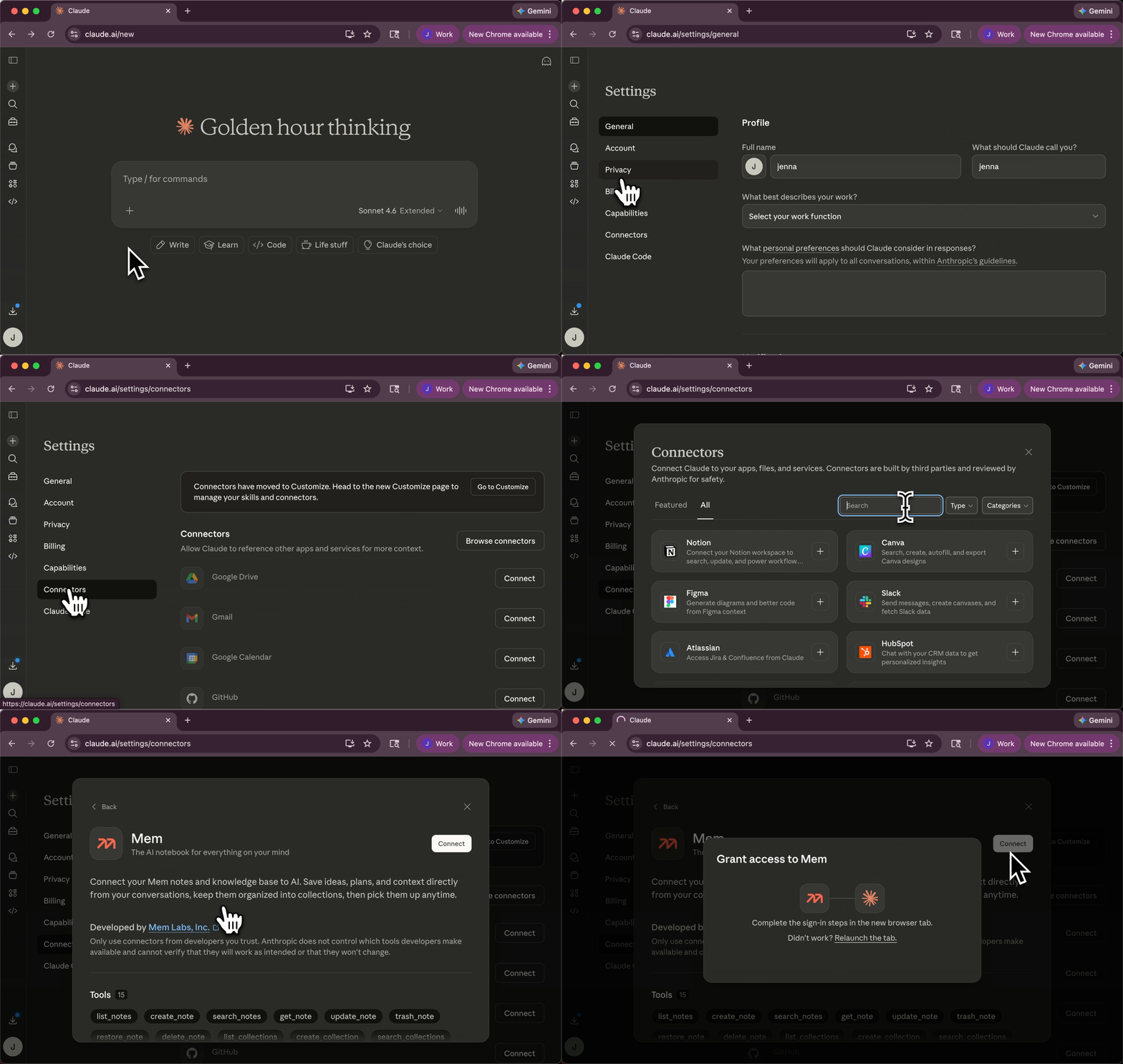
Use the following instructions to connect the Mem MCP server to Claude.Add connector
On the Customize page, click Connectors, then click + to add a connector.
Find Mem and add it.
ChatGPT
Enable Developer mode
In ChatGPT, go to Settings -> Apps -> Advanced settings and turn on Developer mode.
Claude Code CLI
Codex CLI
Provider docs
- Claude connectors docs
- Manage Claude’s tool access
- Use connectors to extend Claude’s capabilities
- ChatGPT connectors docs
- ChatGPT developer mode + full MCP connectors docs
- Claude Code MCP docs
- Codex MCP docs
Troubleshooting
OAuth flow does not open or complete
OAuth flow does not open or complete
- Make sure your client can open a browser window for sign-in and consent.
- If the flow was interrupted, disconnect and reconnect the Mem connector in your client.
- Confirm you are signing in to the intended Mem account/workspace.
I get 401 Unauthorized
I get 401 Unauthorized
I get 429 Rate limit exceeded
I get 429 Rate limit exceeded
- Reduce request frequency and batch larger operations when possible.
- Respect
Retry-Afterbefore retrying. - Review current limits at /api-reference/overview/rate-limits.
Mem tools do not appear in my client
Mem tools do not appear in my client
- Verify the connector URL is exactly
https://mcp.mem.ai/mcp. - Re-list connectors/servers in your client and confirm Mem is enabled.
- Retry the setup flow for your client.
Claude is not finding the Mem tool I need
Claude is not finding the Mem tool I need
- In Claude, open the
+menu, then go to Connectors and confirm Mem is enabled for the current conversation. - Check Connectors -> Tool access. In
On demand, Claude searches for the right connector before loading it, which can add an extra discovery step. - If you need Mem to be available every time in that conversation, switch Claude to
Always available. - Be explicit in your prompt when needed, for example:
Use the Mem connector for this task. - If Claude still does not load Mem, disconnect and reconnect the Mem connector, then retry the conversation.
- Anthropic documents this behavior here: